

When a home Wi-Fi connection keeps dropping, the computer may show “No internet,” disconnect completely, or reconnect by itself a few seconds later. This can be especially frustrating during video calls, downloads, or when working in Outlook because everything appears normal until the connection suddenly disappears.
The important first step is to find out whether the Wi-Fi problem belongs to the whole home network or only to this computer.
Check whether other devices disconnect too
When the computer drops off Wi-Fi, check a phone or another computer connected to the same network.
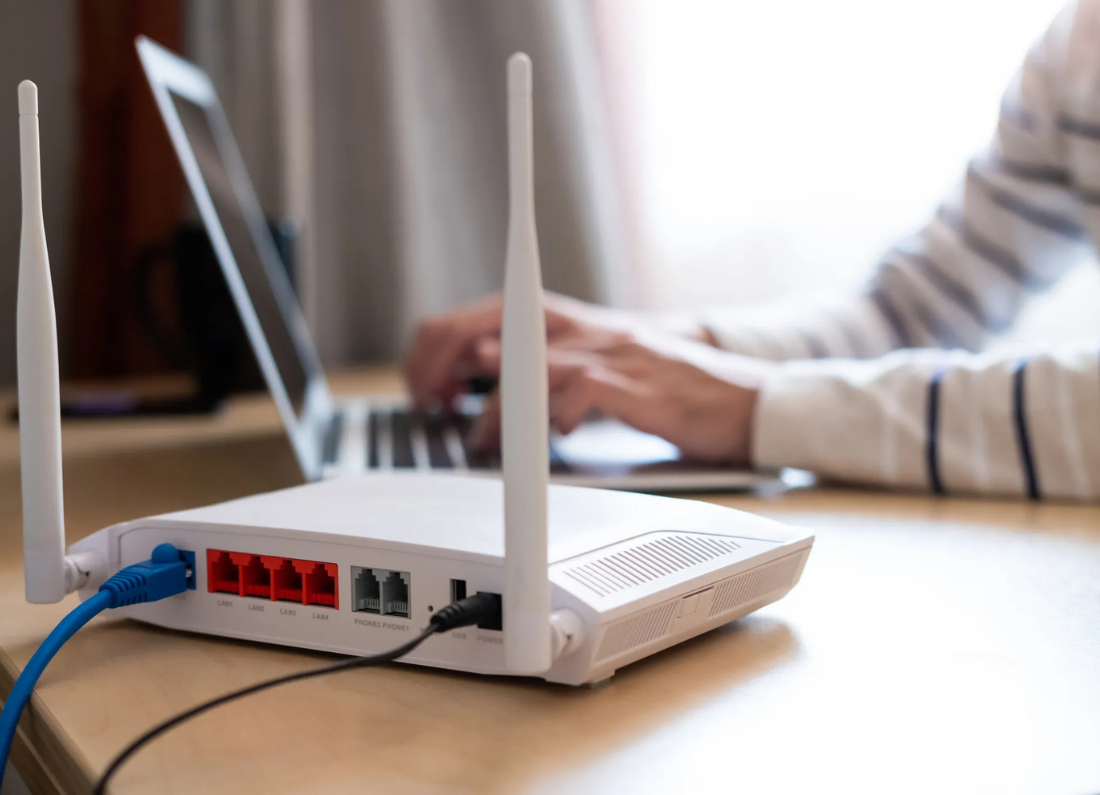
If several devices lose Wi-Fi at the same time, restart the modem/router. The problem is more likely to be with the router or internet connection than with Windows.
If every other device stays connected and only your computer disconnects, continue with the Windows checks below.
Move closer to the router
Use the computer closer to the Wi-Fi router for a while.
A connection can work normally in one room and drop repeatedly in another because walls, floors, furniture, and distance weaken the signal.
If the disconnecting stops when you are close to the router, the computer is probably reaching the edge of reliable Wi-Fi coverage. Moving the router to a more open position can help.
Restart the computer and router
Restart Windows first
Then restart the modem/router and allow it a few minutes to reconnect. Once the Wi-Fi network is available again, reconnect the computer and see whether it remains stable.
This clears many temporary wireless problems without changing any settings.
Forget the Wi-Fi network and reconnect
Windows can occasionally keep an old or incorrect saved connection for a network.
In Windows 11, open Settings > Network & internet > Wi-Fi > Manage known networks. Select your home Wi-Fi and choose Forget.
In Windows 10, open Settings > Network & Internet > Wi-Fi > Manage known networks, select the network, and choose Forget
Connect to the Wi-Fi again and enter the wireless password.
Try the other Wi-Fi band
If your router shows separate 2.4 GHz and 5 GHz Wi-Fi names, try the other one.
5 GHz is normally faster at shorter distances, while 2.4 GHz generally reaches farther through the house. If the computer is several rooms away from the router, the 2.4 GHz network may stay connected more reliably.
Use whichever band gives the more stable connection in the place where the computer is normally used.
Install Windows updates
Open Settings > Windows Update and install available updates, then restart the computer.
Updates can include fixes for Windows networking and may also provide newer drivers for the computer’s wireless adapter.
Use Windows Network Reset if the problem continues
If this one computer still disconnects while other devices remain stable, you can reset its Windows network settings.
In Windows 11, go to Settings > Network & internet > Advanced network settings > Network reset.
Choose Reset now and allow the computer to restart. You will need to reconnect to your Wi-Fi afterward and enter the password again.
If the computer continues dropping Wi-Fi even next to the router after these steps, the issue may be with its wireless adapter or driver rather than the home internet service. At that stage, checking the computer manufacturer’s Wi-Fi driver or hardware is more sensible than repeatedly resetting the router.


Leave a Reply