

A Mac can show that it is connected to Wi-Fi while Safari, Mail and other apps still say there is no internet connection.
The Wi-Fi symbol only tells you that the Mac has connected to the wireless router. It does not guarantee that the router itself currently has internet access. That is why you can have full Wi-Fi bars and still be unable to open websites.
If your Mac is connected to Wi-Fi but has no internet, first work out whether the problem affects the whole home or only the Mac.
Check another device
Try opening a website on your phone while it is connected to the same home Wi-Fi.
If the phone also has no internet, the Mac is probably not the problem. Restart the modem or router and check whether your internet provider has an outage.
If other devices work normally but the Mac does not, continue with the Mac checks below.
Turn Wi-Fi off and back on
Click the Wi-Fi icon on the Mac and turn Wi-Fi off.
Wait a few seconds, turn it back on, then reconnect to your home network.
Open Safari and test a couple of websites.
If the Mac still says connected but there is no internet, restart the Mac.
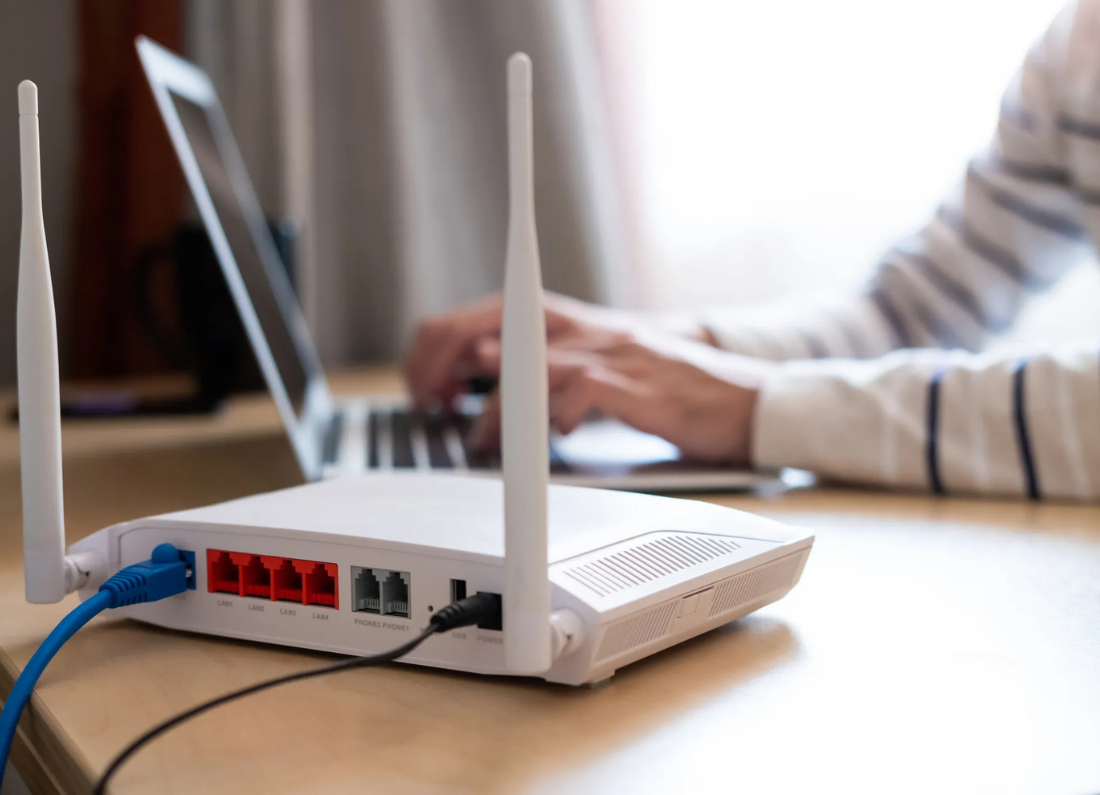
Restart the modem or router
Even if other devices are working, the router can sometimes have a problem with one connected device.
Turn the modem or router off, wait briefly, and turn it back on.
Allow a few minutes for the internet and Wi-Fi lights to return to normal.
Reconnect the Mac and test again.
Forget the Wi-Fi network and reconnect
If the Mac remembers an old or incorrect connection, forgetting the network can give it a fresh start.
Open System Settings > Wi-Fi.
Find your connected network, open its details, and choose Forget This Network.
Reconnect to the same Wi-Fi and enter the password again
Be sure you know the Wi-Fi password before forgetting the network.
Check for a VPN
If you use a VPN on the Mac, disconnect it temporarily.
A VPN can sometimes remain connected incorrectly and stop websites or email from reaching the internet even though Wi-Fi itself looks normal.
After disconnecting the VPN, test Safari again.
If the internet immediately works, restart or update the VPN before using it again.
Check Date & Time
Incorrect date or time settings can cause secure websites and online services to fail.
Go to System Settings > General > Date & Time.
Make sure the Mac is set to update the date and time automatically.
Then restart the browser and test again.
Install available macOS updates
Go to System Settings > General > Software Update.
If an update is available and you can get online using another connection, such as a phone hotspot, install it and restart the Mac.
Apple updates can include fixes for Wi-Fi and networking problems.
Try another network
Connect the Mac to another trusted Wi-Fi network or a phone hotspot.
If the Mac works normally there, the problem is more likely with the home modem, router, or internet service.
If the Mac cannot get internet on any network, even though it connects to Wi-Fi, the issue is more likely on the Mac itself and may need further support.


Leave a Reply