

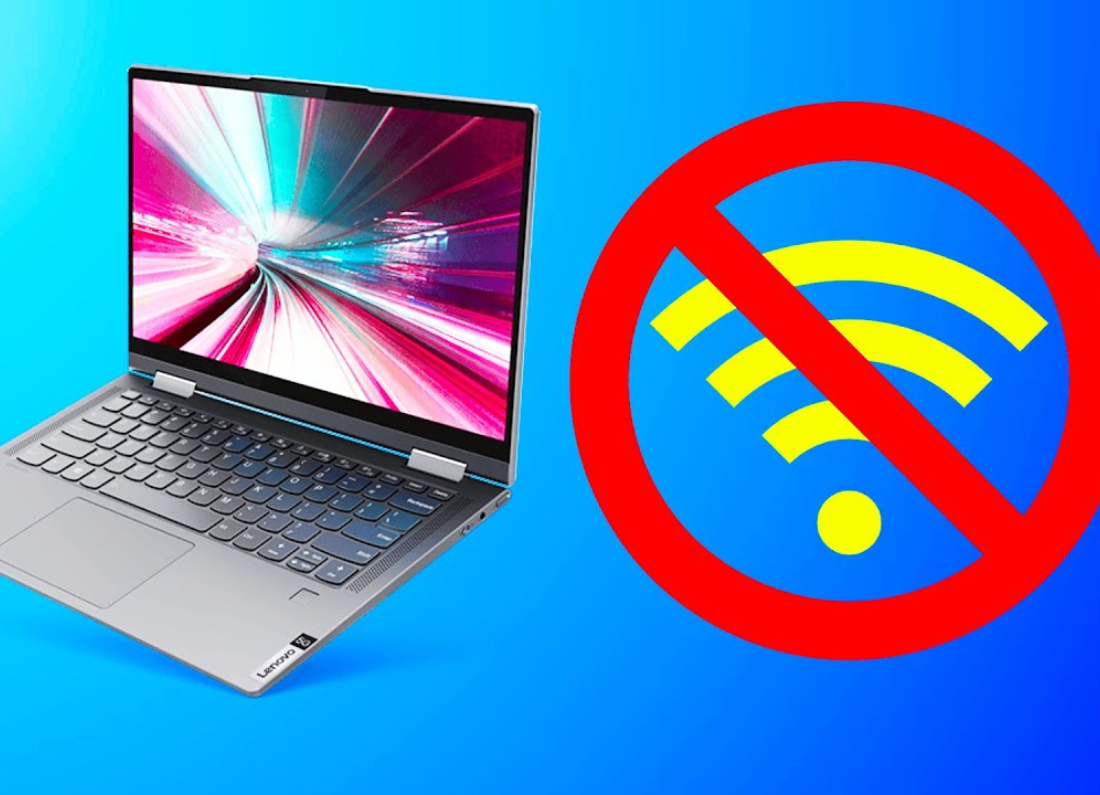
A new Lenovo laptop normally starts with the Windows setup screens where you choose your country, keyboard, computer name, sign-in account, privacy options, and network connection.
If you do not have home internet available, what you can do depends mainly on the version of Windows installed on the laptop. Some Windows setup versions offer an offline or limited setup option. Current Windows 11 Home and Windows 11 Pro for personal use, however, normally require an internet connection during the initial setup.
So first check what options Windows gives you on the network screen rather than trying to change anything on the laptop.
Start the Lenovo laptop normally
Connect the charger and turn the laptop on.
Choose your country or region and keyboard layout when Windows asks.
Continue until you reach the screen asking you to connect to a network.
Do not worry if Windows takes a little time between setup screens. A new computer may restart during the process.
Look for an offline setup option
On the network screen, look for wording such as:
- I don’t have internet
- Continue with limited setup
- Offline account
If one of these options is shown, select it.
Windows should then allow you to create a local user account. Enter the name you want to use for the computer account, create a password if you want one, and continue through the privacy and device settings.
Once you reach the Windows desktop, the main setup is finished. You can connect the laptop to Wi-Fi later from the network icon on the taskbar.
What if there is no “I don’t have internet” option?
On current Windows 11 Home and Windows 11 Pro personal-use setup, Microsoft requires an internet connection to complete the normal initial setup.
If your Lenovo shows only a list of networks and will not give you an offline option, there is nothing wrong with the laptop. That is how that version of Windows is designed.
The simplest solution is to use a temporary internet connection
If you have a smartphone with mobile data, turn on its Personal Hotspot or Mobile Hotspot, then connect the Lenovo laptop to that Wi-Fi network from the Windows setup screen.
You only need the connection long enough to finish the required Windows setup and sign-in screens. You can disconnect the hotspot after the desktop appears.
You can use a local Windows account later
If Windows requires you to sign in with a Microsoft account during setup, you can still change the computer to a local account afterward.
Once Windows is running, open Settings > Accounts > Your info and select Sign in with a local account instead if that option is available.
Follow the prompts to create the local account.
A local account can be used to sign in to the laptop without internet.
What can be done before internet is available?
After you reach the desktop, the Lenovo can be used for normal offline work such as viewing files, creating documents with installed software, changing Windows settings, and connecting USB devices.
Some parts of a new-laptop setup do need internet later. Windows activation, Windows updates, Lenovo driver updates, Microsoft Store apps, OneDrive, and software downloads may need a connection.
When internet becomes available, connect to Wi-Fi and allow Windows Update to check for updates. Lenovo may also have Lenovo Vantage installed, which can check for Lenovo-specific updates.
If the laptop cannot see any Wi-Fi networks at all, restart it once and check again. For a brand-new Lenovo, avoid changing drivers or advanced network settings until you have first confirmed that the normal Windows setup is complete.


Leave a Reply