

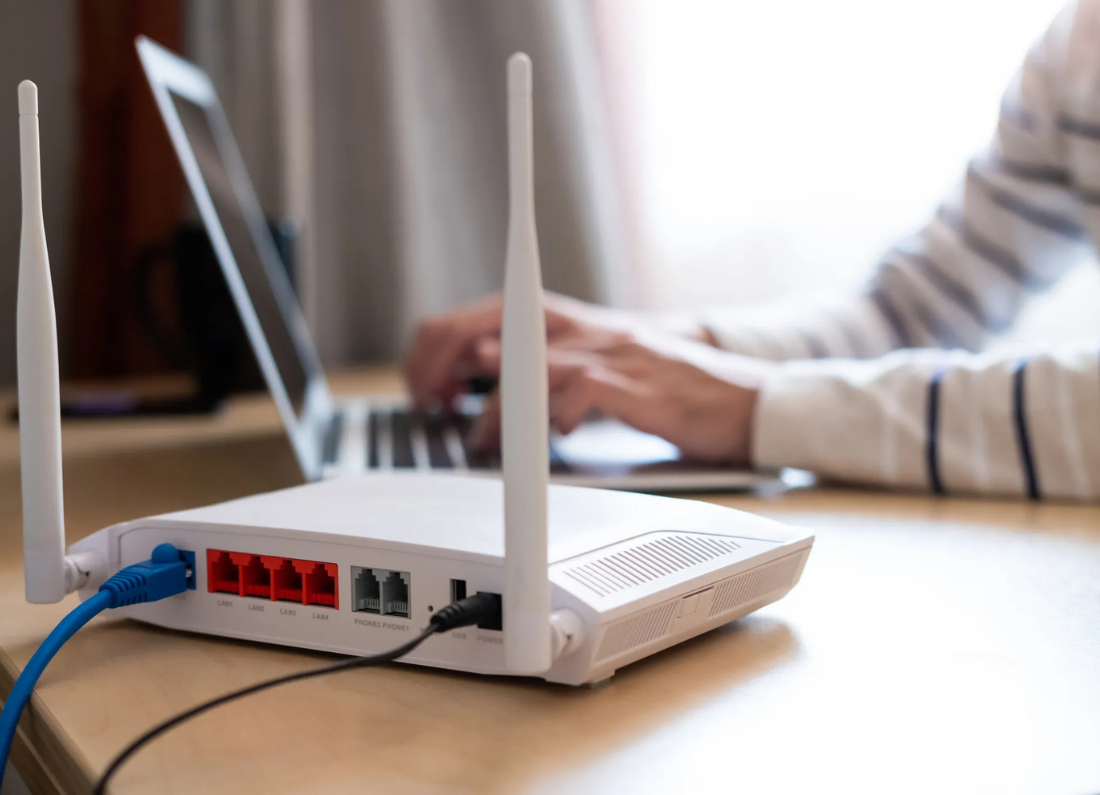
A slow internet connection can make almost everything on a computer feel wrong. Websites take longer to open, videos keep buffering, downloads crawl, and programs such as Outlook may take much longer to send or receive information.
Before assuming your internet provider is at fault, it helps to work out whether the problem is affecting the whole house or only one computer. Wi-Fi signal, distance from the router, other devices using the connection, and even a background download can make a good internet service feel slow.
Check another device first
Use a phone, tablet, or another computer on the same home Wi-Fi and open a few websites.
If every device is slow, the problem is more likely to be with the router, modem, or internet service.
If only one computer is slow, concentrate on that computer rather than resetting everything in the house.
Restart the modem and router
Turn the modem/router off, wait about 30 seconds, and turn it back on.
If you have a separate modem and Wi-Fi router, restart both. Give them a few minutes to reconnect fully before testing the internet again.
This is one of the simplest checks, but it can clear a connection that has become slow after running continuously for a long time.
Move closer to the Wi-Fi router
If the computer is using Wi-Fi, test it in the same room as the router.
Walls, floors, cupboards, and distance weaken the wireless signal. A computer showing Wi-Fi bars can still have a connection that is too weak to deliver the speed you are paying for.
If the internet becomes much faster near the router, the issue is Wi-Fi coverage rather than the internet service itself.
Check which Wi-Fi band you are using
Many home routers provide both 2.4 GHz and 5 GHz Wi-Fi.
The 2.4 GHz band usually reaches farther but can be slower and more crowded. The 5 GHz band normally gives better speed when you are reasonably close to the router.
If your router shows separate Wi-Fi names, try the 5 GHz network while you are near the router and compare the speed.
Stop other heavy internet use for a moment
Pause large downloads, cloud backups, game updates, streaming on several TVs, or other computers downloading files.
Then test the problem computer again.
If the speed improves immediately, your connection may simply be shared between too many active devices at that moment.
Run a speed test
Run an internet speed test while the computer is close to the router and no large downloads are running.
Compare the result with the internet plan you are paying for. Do not expect Wi-Fi to match the advertised maximum exactly, but a very large difference is worth investigating.
If possible, test once using an Ethernet cable. If Ethernet is fast but Wi-Fi is slow, the internet service is probably fine and the problem is with wireless signal or Wi-Fi interference.
Restart the computer and update Windows
Restart the computer, then install any available Windows updates.
If only this computer remains slow while other devices are fast in the same location, open Settings > Network & internet and run the Windows network troubleshooter.
If every device remains slow even when close to the router, contact your internet provider and give them the speed test result. At that point they can check the service coming into the home rather than you repeatedly changing settings on the computer.


Leave a Reply