

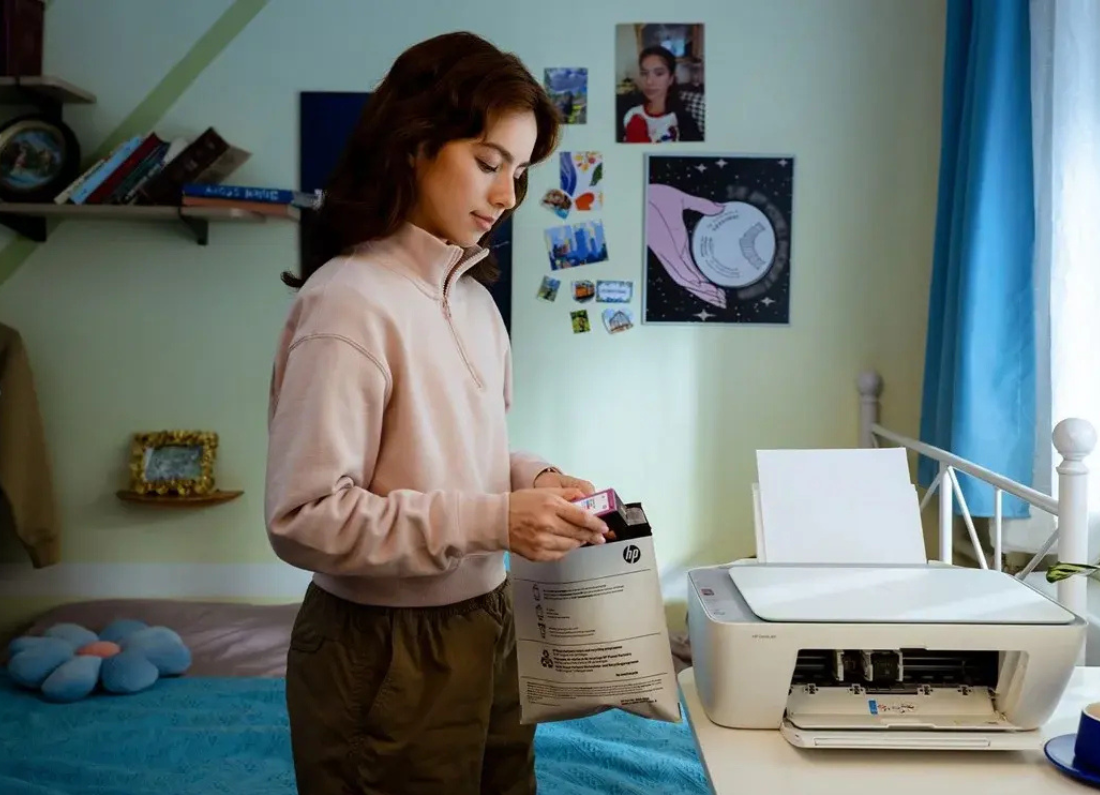
The HP DeskJet 2922 can be connected to Wi-Fi without using a USB cable. Once it is connected to your wireless network, you can print from a computer, phone, or tablet connected to the same network.
This printer does not have a large screen where you can select your Wi-Fi name and type the password directly. Most of the setup is handled through the HP app.
If the printer is new, setup is usually straightforward. If it was connected to another router before, or your Wi-Fi name or password has changed, the printer may not show up immediately. In that case, you may need to put it back into wireless setup mode.
Before you start
Make sure:
- The HP DeskJet 2922 is turned on.
- Your computer or phone is connected to your normal home or office Wi-Fi.
- You know your Wi-Fi password.
- The printer is reasonably close to the router during setup.
- The HP app is installed on your computer or phone.
Avoid using a guest Wi-Fi network during setup, because guest networks can prevent devices from seeing each other.
Connect the HP DeskJet 2922 to Wi-Fi
Open the HP app and select Add Printer, Set Up a New Printer, or the + option.
Give the app a little time to search.
If the DeskJet 2922 appears, select it and continue with the setup. The app should ask you to choose your Wi-Fi network and enter the wireless password.
Complete the remaining prompts.
The blue wireless light on the printer may blink while it is connecting. When the connection is successful, the wireless light should remain on.
Try printing a small document or test page. If it prints correctly, the wireless setup is complete and you do not need a USB cable.
If the printer is not found
First, make sure your computer or phone is connected to the same normal Wi-Fi network you want the printer to use.
If you have more than one Wi-Fi network in the house, make sure you are not connected to a guest network, mobile hotspot, or another router.
Close and reopen the HP app and search again.
If the printer still does not appear, turn the printer off, wait a few seconds, and turn it back on. Once it is ready, try adding it again.
Put the printer back into wireless setup mode
If the DeskJet 2922 was previously connected to another router, it may still be trying to use the old Wi-Fi settings.
Press the Cancel button once.
Then press and hold the Wireless and Cancel buttons together for about five seconds, until the Power button starts blinking.
Wait until the blue Wireless light begins blinking.
Now open the HP app again and choose Add Printer or Set Up a New Printer.
The printer should appear as available for setup. Select it, choose your Wi-Fi network, enter the password, and complete the connection.
If it still will not connect
Check the Wi-Fi password carefully. A wrong password is one of the most common reasons the printer is found but fails to connect.
Move the printer closer to the router and try again
If you are using a VPN on your computer or phone, turn it off temporarily while setting up the printer. Some VPNs can prevent the HP app from finding devices on the local network.
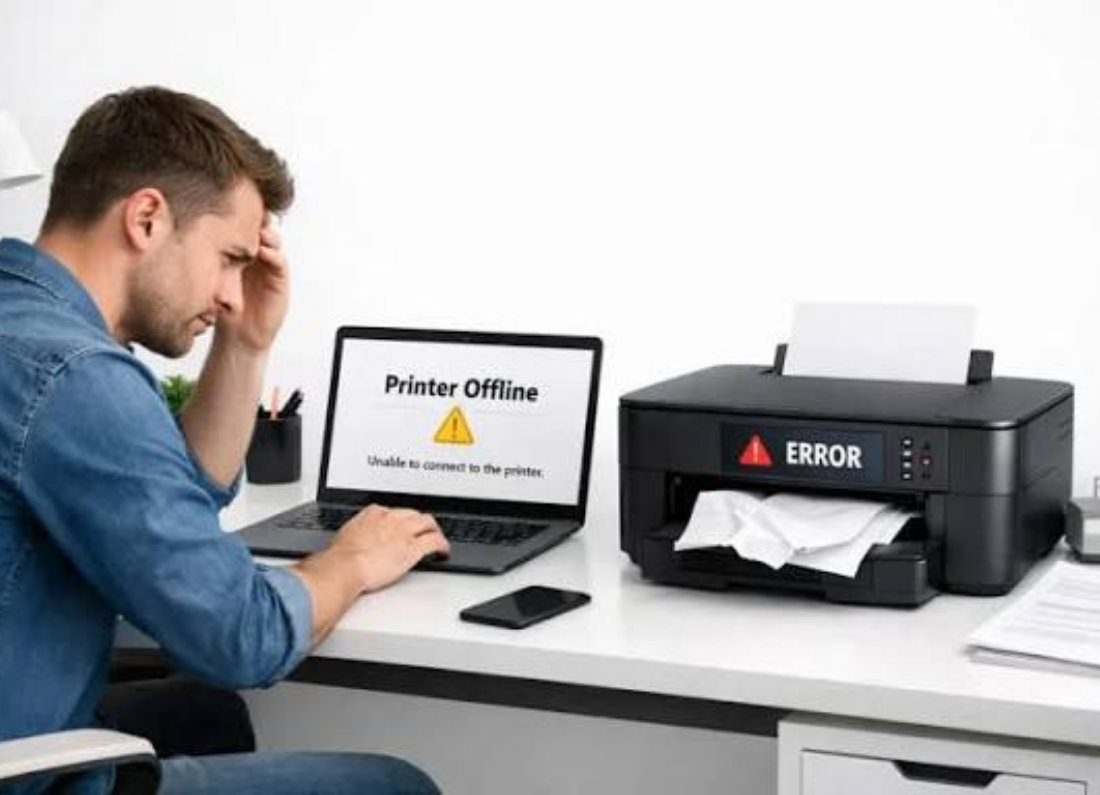
If the wireless light is already solid but the printer shows offline, restart the printer and your computer or phone, then open the HP app again.
You do not need to repeat the full Wi-Fi setup every time you want to print from another device. Once the DeskJet 2922 is connected to the router, other computers and phones on the same network can simply add the printer through the HP app.

Leave a Reply