

The annoying thing about a keychain problem on a Mac is that the password box can keep coming back even after you enter a password that you know is correct.
I would first think about whether the Mac login password was changed recently
That is a common point where this starts. The Mac can have one password for your current login while the login keychain is still expecting the old one.
Try the password you use to log in to the Mac
If the message specifically mentions the login keychain, start with your current Mac login password.
It is not necessarily asking for your Apple Account password.
If the current password does not work and you changed or reset the Mac password recently, try the previous Mac login password if you still remember it.
When the old password works, that tells you the keychain and the Mac login password have simply fallen out of step.
Restart before changing anything
I would restart the Mac next.
Keychain prompts can sometimes come from an app or service that has got stuck asking for the same password.
After the restart, open the program that was bringing the message up and see whether it happens again.
If it does, then I would look at Keychain Access.
Check whether the login keychain keeps locking
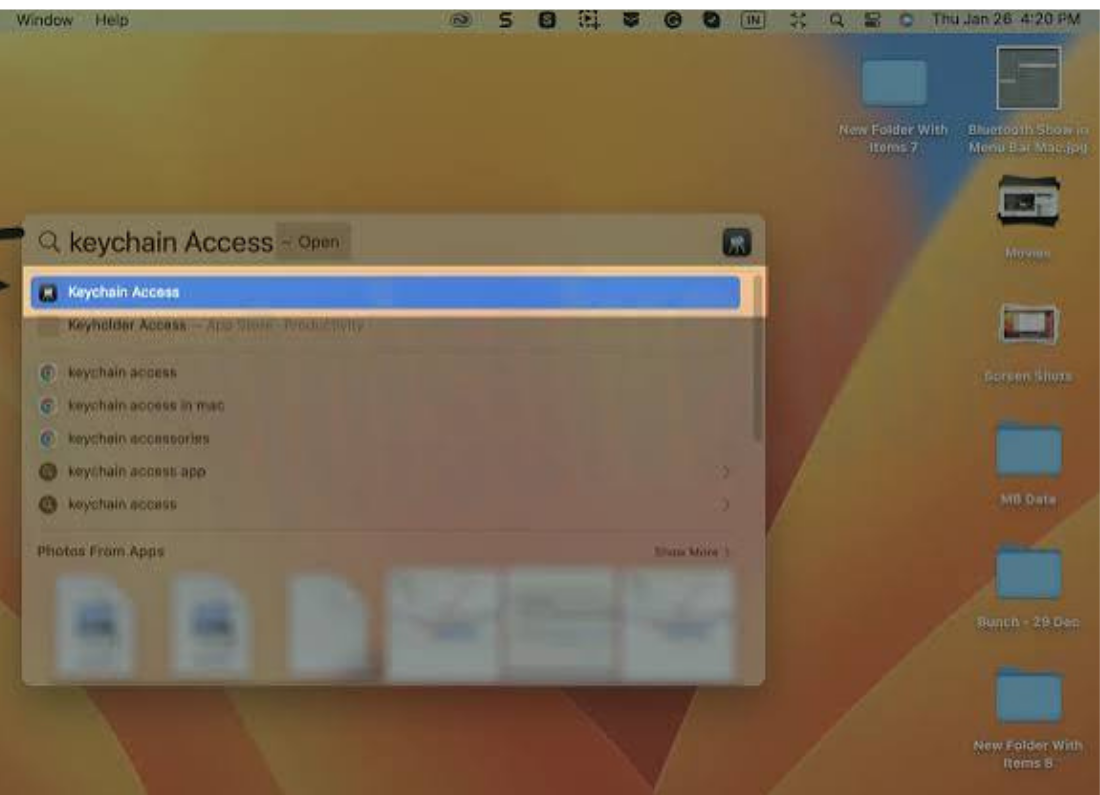
Open Keychain Access using Spotlight and select the login keychain.
Go to Edit > Change Settings for Keychain “login”.
Check whether it is set to lock after a short time or whenever the Mac sleeps.
If those settings are causing the prompts, change them and use the Mac normally for a while.
If the Mac password changed
When you still know the old keychain password, I would update the login keychain so it matches the password you now use for the Mac.
In Keychain Access, select the login keychain and use the option to change its password.
Enter the old keychain password first, then set the new one to match your current Mac login password.
Once they match again, the keychain should normally unlock when you log in.
I would not reset the keychain first
This is the part I would be careful with.
You will find plenty of instructions online telling you to reset the default keychain. That can solve a password mismatch, but it also creates a new blank keychain and passwords stored in the old one may no longer be available.
So I would only consider that after trying the current password, the previous password, a restart, and the normal keychain password change.
If you no longer know the old keychain password and there are important saved passwords on the Mac, I would get Apple support before resetting it.
It is a much better outcome than fixing the prompt and then discovering the passwords you needed are gone.

Leave a Reply