

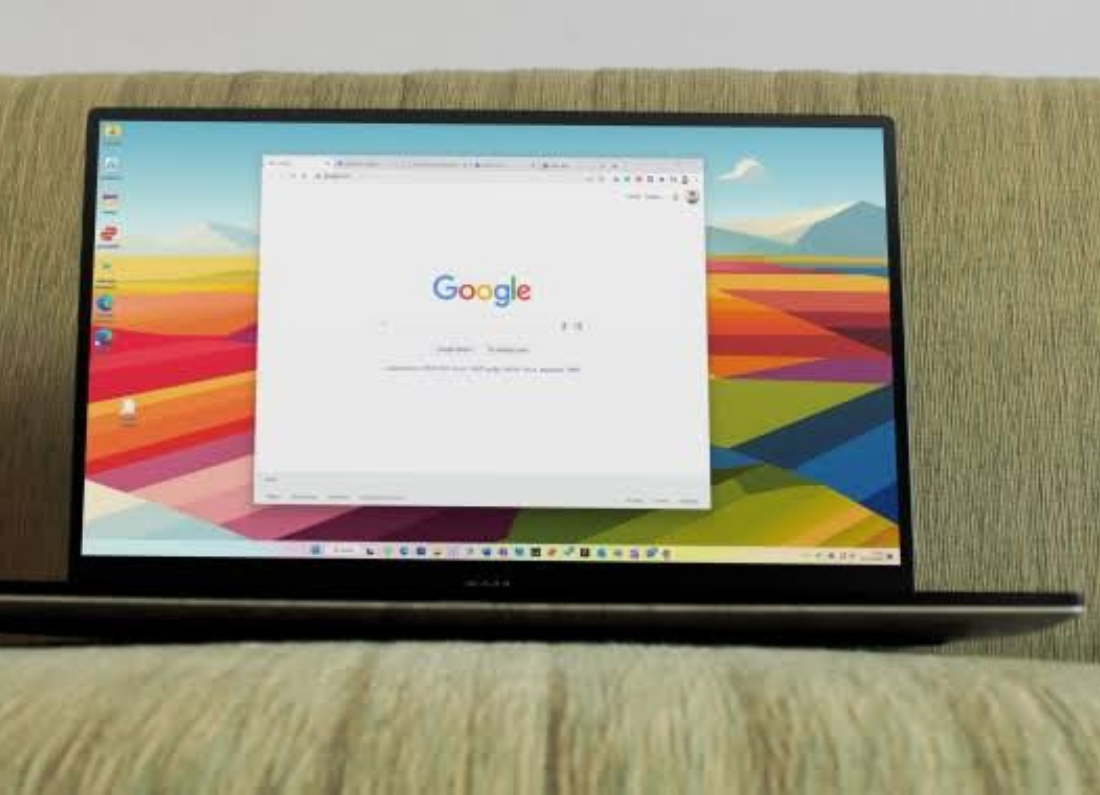
Chrome crashing once is not unusual. What gets frustrating is when it closes every few minutes, freezes as soon as you open a tab, or will not stay open long enough to use it.
When that happens, I would not reinstall Chrome straight away.
There are a few easier things I would rule out first, and extensions are quite high on that list.
Start with a restart
Close Chrome and restart the computer
This is basic, but Chrome can leave processes running in the background even after the window has gone.
After Windows starts again, open Chrome with one tab and leave everything else closed for a moment.
If it stays open, start using it normally and see when the crash returns.
Check whether an extension is causing it
If Chrome stays open long enough, click the three dots and go to Extensions > Manage extensions.
Turn the extensions off temporarily.
I would use Chrome for a while like that before doing anything else.
If the crashes stop, turn the extensions back on one at a time. Usually the troublesome one becomes fairly obvious.
This is much quicker than wiping the whole browser.
Update Chrome
Go to the three-dot menu, then Help > About Google Chrome.
Chrome will check for updates there.
Let it update, relaunch the browser and test it again.
I would also check Settings > Windows Update because a browser problem that started recently can sometimes be connected to Windows or a graphics driver change.
Try Guest mode
This is another useful test because it gives you a cleaner Chrome session without immediately changing your normal profile.
Click the profile icon and open Guest mode.
Use it for a while
If Chrome works normally in Guest mode but crashes in your usual profile, I would start looking at the profile, extensions, or browser settings rather than Windows itself.
Try turning off graphics acceleration
If the crashes happen around video, scrolling, or graphics-heavy websites, I would try this next.
Open Settings > System in Chrome and turn off Use graphics acceleration when available.
Relaunch Chrome.
If it suddenly becomes stable, you have found a useful clue and can leave that option off.
Reinstall Chrome only after that
If Chrome still crashes, uninstall it, restart the computer and download a fresh copy using Microsoft Edge.
Install Chrome and test it before adding all your extensions again.
If a clean copy of Chrome still crashes while Edge and other programs work normally, I would stop treating this as a simple Chrome problem.
At that point, security software, Windows, or the graphics driver becomes more likely than the browser itself.


Leave a Reply