

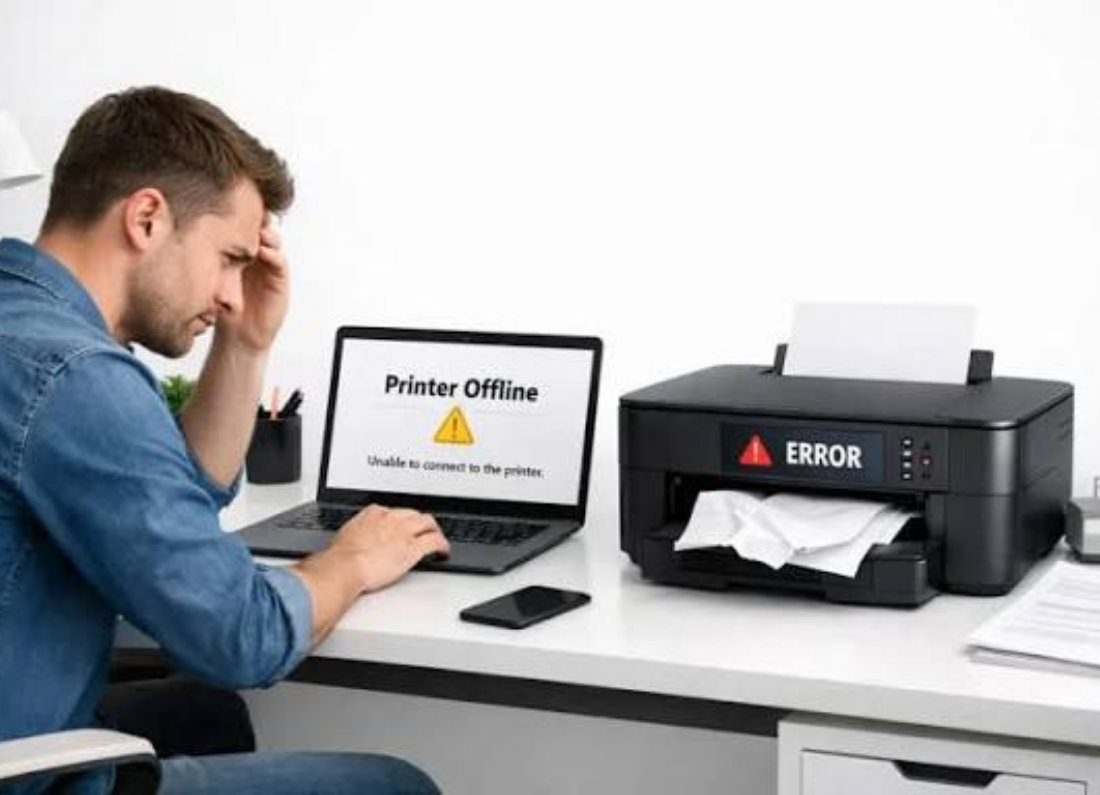
A printer can be connected to Wi-Fi and still show as “Offline” on a Windows computer. This is a very common wireless printer problem, and it does not always mean the printer has lost its internet or Wi-Fi connection.
What usually happens is that the printer is still connected to the modem or router, but Windows is no longer communicating with it properly. This can happen after the printer has been turned off for a while, after an NBN modem or router has restarted, after a Windows update, or when the computer has more than one copy of the same printer installed.
If your printer says offline but is connected to Wi-Fi, work through the simpler checks first before removing or reinstalling anything.
Check the printer itself first
Make sure the printer is turned on and not showing an error such as paper jam, out of paper, low ink, or an open cover.
If the printer has a wireless light or Wi-Fi symbol, check that it shows a normal connection. A blinking wireless light can mean the printer is still trying to connect.
Restart the printer and wait until it is fully ready.
Then try printing again.
Make sure the computer and printer are on the same Wi-Fi
Your computer and printer need to be on the same home network for normal wireless printing.
Check the Wi-Fi name on your Windows computer. If you have a main network, guest network, extender, or separate modem, make sure the computer is using the same network as the printer.
This is especially worth checking after changing your NBN modem, Wi-Fi name, or Wi-Fi password.
If the printer was connected to an old network, reconnect it to the current Wi-Fi before continuing.
Check the printer queue
A stuck print job can make a printer appear unavailable even though the wireless connection is fine.
Go to Settings > Bluetooth & devices > Printers & scanners in Windows 11, or Settings > Devices > Printers & scanners in Windows 10.
Select your printer and open the print queue.
Cancel any jobs that have been sitting there for a long time, then try printing a simple document again.
Check that Windows is using the correct printer
It is common to find two or more entries for the same printer, especially if it has been reconnected in the past.
When you select Print, check the printer name before sending the job.
Do not select an old copy marked Offline if another copy of the same printer shows Ready.
You can also go back to Printers & scanners and set the working printer as your default printer.
Restart the computer and router
If the printer still shows offline, restart the computer.
If several wireless devices have also been behaving strangely, restart the modem or router as well. Wait until the internet and Wi-Fi are fully back before testing the printer.
A router restart can give devices a fresh network connection and often clears a printer offline problem.
Remove and add the printer again
If the printer is definitely connected to Wi-Fi but Windows still shows it offline, remove the printer from Printers & scanners.
Restart the computer, return to Printers & scanners, and choose Add device.
Allow Windows to find the printer again and add the fresh entry.
Try a test print.
If the printer works from another phone or computer but still shows offline on only one Windows PC, the problem is most likely with that computer’s printer setup rather than the printer itself.

Leave a Reply