


A printer printing blank pages can be confusing because the machine may sound completely normal. It takes the paper, goes through the printing process, and then gives you a page with nothing on it.
This problem can happen with HP, Canon, Epson, Brother and other printers. On an inkjet printer, it is often related to the ink cartridges or printhead. On a laser printer, toner or the cartridge can be the cause. Sometimes the printer is fine and the problem is actually the document or computer sending the print job.
If you are searching “why is my printer printing blank pages,” start with the easy checks before assuming the printer has failed.
Give the update some time
If the percentage is still changing occasionally, leave the computer connected to power and let it continue.
Feature updates can take much longer than smaller security updates.
Avoid forcing the computer off while Windows is on a full-screen update message unless it has clearly remained frozen for a very long time.
If you are still inside Windows and the update is stuck in Settings > Windows Update, continue with the steps below.
Check the ink or toner level
Start by checking whether the printer has enough ink or toner.
Some printers will continue to feed paper even when a cartridge is empty or almost empty. If you recently received a low ink or toner warning, replace the affected cartridge and test again.
If you have just installed a new cartridge, make sure it is the correct cartridge for your printer model.
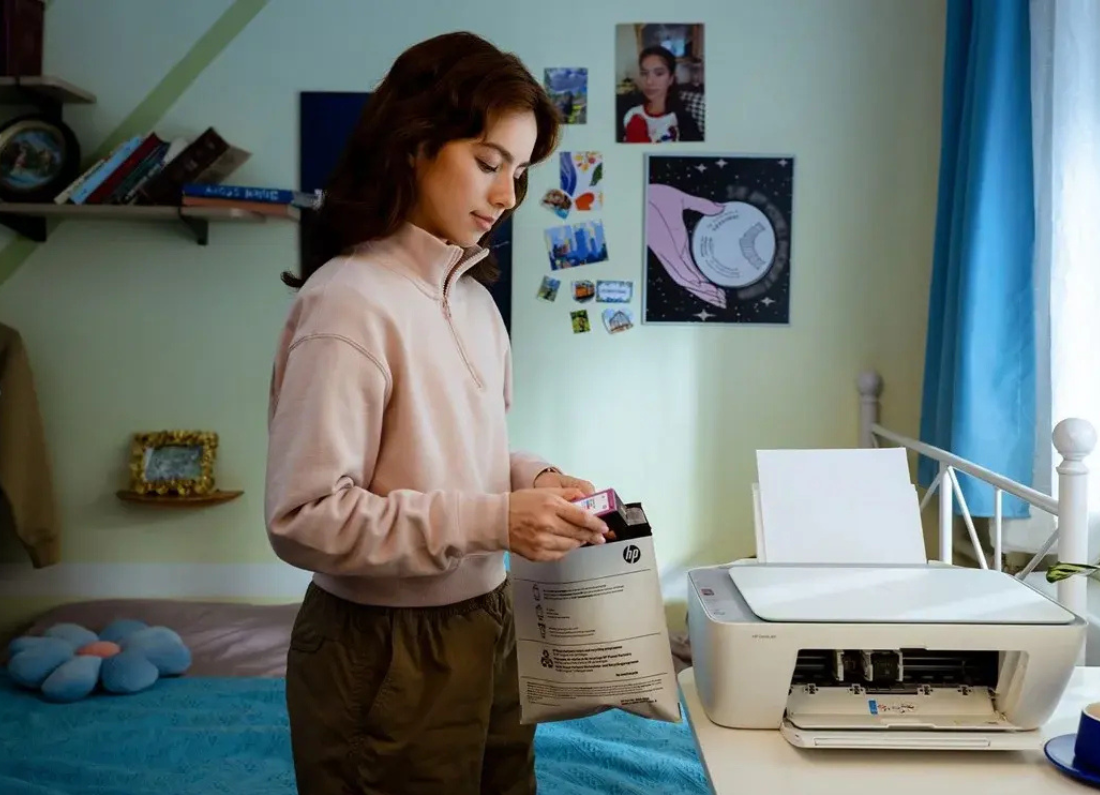
Check a newly installed cartridge
Blank pages often start immediately after changing ink or toner.
Open the printer and check that the cartridge is fitted properly.
New cartridges normally have protective tape, a plastic strip, or a seal that must be removed before use. If any of that packaging is still covering the cartridge opening or contacts, the printer may feed paper without putting anything on it.
Remove the cartridge, check it, then install it again firmly.
Print a test page from the printer
If your printer has an option to print a test page, printer status report, or nozzle check from its own control panel, try that.
This helps separate a printer problem from a computer problem.
If the printer’s own test page is also blank, concentrate on the ink, toner, cartridge, or printer cleaning steps.
If the printer’s test page looks normal but documents from your computer come out blank, the problem is more likely with the file, app, or printer setup on the computer.
Run the printer cleaning option
For an inkjet printer, open its maintenance or tools section and run the normal printhead or cartridge cleaning option.
After the cleaning finishes, print another test page.
If the result improves but still has missing areas, you can usually run the cleaning once more. Avoid repeatedly running cleaning cycles because they use a fair amount of ink.
If your printer has a cartridge alignment option, run that after installing new cartridges.
Try printing a different document
Open a simple web page or a new Word document, type a few lines, and print it.
If that prints normally, the original file may be the problem.
PDF files in particular can occasionally print incorrectly even though they look fine on the screen. Try opening the PDF in another program or browser and print it again.
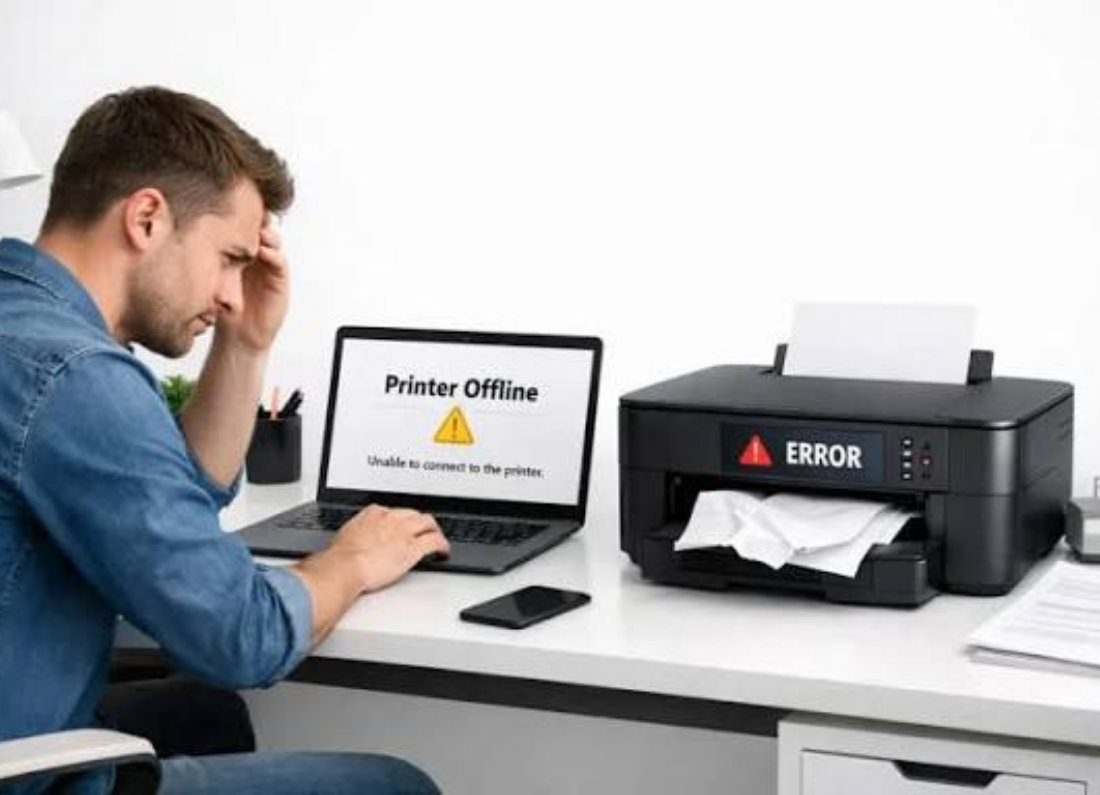
Restart and reconnect the printer
Turn the printer off, restart the computer, then turn the printer back on.
If the printer is connected by Wi-Fi, make sure it still appears connected to your home network.
If blank pages only happen when printing from one computer, remove the printer from that computer and add it again.
When every internal printer test is blank even after checking the cartridges and running the normal cleaning option, the issue is more likely inside the printer and may need service rather than further computer troubleshooting.

Leave a Reply