

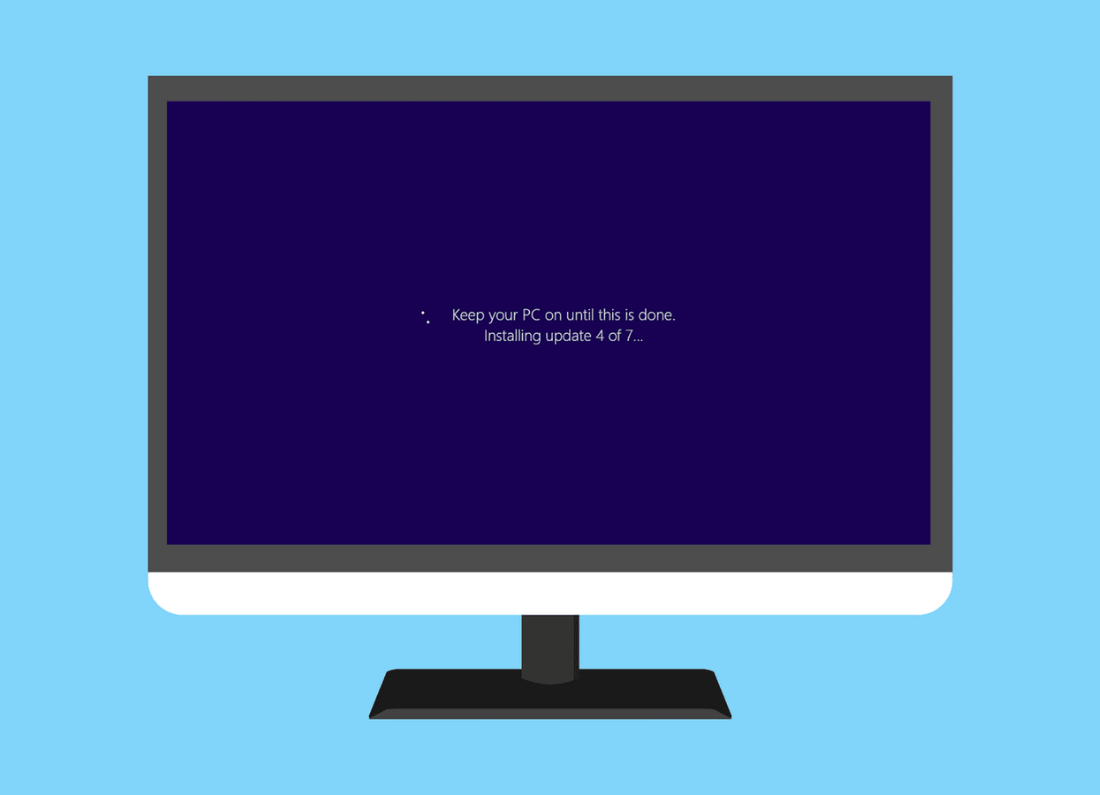
A Windows 11 update can sometimes sit at the same percentage for a long time, fail and try again, or stay on “Downloading” or “Installing” without appearing to move.
This does not always mean Windows is damaged. Large updates can take a while, especially on slower computers or internet connections. Updates can also stop because the computer is low on free storage, the internet connection dropped during the download, or another program interrupted the process.
If your Windows 11 update is stuck, start with the normal checks before trying anything more complicated.
Give the update some time
If the percentage is still changing occasionally, leave the computer connected to power and let it continue.
Feature updates can take much longer than smaller security updates.
Avoid forcing the computer off while Windows is on a full-screen update message unless it has clearly remained frozen for a very long time.
If you are still inside Windows and the update is stuck in Settings > Windows Update, continue with the steps below.
Restart the computer
A normal restart can clear an update that has stopped responding.
Save your work, restart Windows, then go to Settings > Windows Update and choose Check for updates.
Windows may continue the same update or start the download again.
Restart the modem or router
Even if other devices are working, the router can sometimes have a problem with one connected device.
Turn the modem or router off, wait briefly, and turn it back on.
Allow a few minutes for the internet and Wi-Fi lights to return to normal.
Reconnect the Mac and test again.
Forget the Wi-Fi network and reconnect
If the Mac remembers an old or incorrect connection, forgetting the network can give it a fresh start.
Open System Settings > Wi-Fi.
Find your connected network, open its details, and choose Forget This Network.
Reconnect to the same Wi-Fi and enter the password again
Be sure you know the Wi-Fi password before forgetting the network.
Check the internet connection
Windows needs a stable connection while downloading updates.
Open a website and make sure the internet is working normally.
If Wi-Fi is weak, move closer to the router or temporarily use a more reliable connection if one is available.
If other devices in the house are also having internet problems, restart the modem or router before trying Windows Update again.
Check available storage
A Windows update needs enough free space to download and install its files.
Go to Settings > System > Storage and check the free space on the Windows drive.
If the drive is almost full, remove files you no longer need, empty the Recycle Bin, and uninstall unused programs.
After freeing some space, restart the computer and try the update again.
Disconnect unnecessary USB devices
Disconnect external hard drives, USB storage, printers, docks, and other accessories that are not needed while the update is installing.
Leave the keyboard, mouse, power cable and internet connection in place.
Restart the computer and check for the update again.
Sometimes an external device or its driver can interfere with a Windows update.
Run the Windows Update troubleshooter
Go to Settings > System > Troubleshoot > Other troubleshooters.
Find Windows Update and choose Run.
Allow Windows to check for common update problems and apply any suggested fix.
Restart the computer when it finishes, then return to Windows Update.
Pause and resume updates
If the update repeatedly fails to start downloading, open Settings > Windows Update and pause updates temporarily.
Restart the computer, return to the same page, and resume updates.
Then select Check for updates.
This can refresh an update that was waiting in a bad state.
If the Windows 11 update is still not installing after these checks and Windows shows a specific error code, write that code down. The code is useful because it identifies the particular update problem and is a better next step than randomly changing Windows settings.


Leave a Reply