

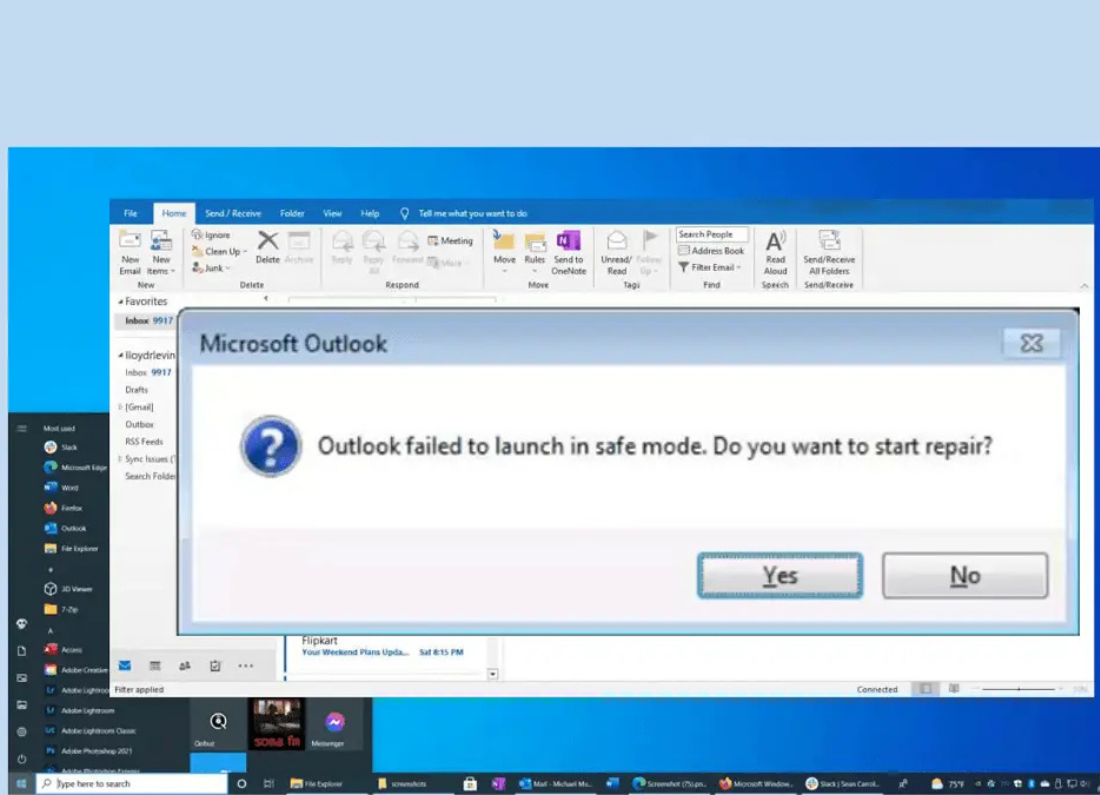
If Outlook will not open on your Windows computer, it can happen in a few different ways. You may click the Outlook icon and nothing happens, Outlook may appear for a few seconds and disappear, or it may stop at a message such as “Processing” or “Cannot start Microsoft Outlook.”
This does not always mean your emails are damaged. Outlook depends on its own program files, your mail profile, updates, and any extra add-ins that have been installed. If one of these does not load correctly, Outlook can stop before the main window opens.
Start with the simple checks below and only move to the next step if Outlook still will not open.
Restart the computer first
Close anything else you are working on and restart Windows.
After the computer starts again, wait until Windows has fully loaded and try Outlook once. A background Outlook process can sometimes remain stuck after the program has been closed, and a restart clears it without changing any settings.
If Outlook still does not open, continue below.
Check if Outlook is already running in the background
Press Ctrl + Shift + Esc to open Task Manager.
Look through the running apps and processes for Microsoft Outlook or OUTLOOK.EXE. If you find it even though no Outlook window is open, select it and choose End task.
Close Task Manager and try Outlook again.
Try opening Outlook in Safe Mode
Safe Mode starts Outlook without loading its normal add-ins. It is a useful check when Outlook suddenly stops opening after an Office update or after another program has added something to Outlook.
Press Windows + R, type:
outlook.exe /safe
and select OK.
If Outlook opens in Safe Mode, the program itself is working and an add-in may be causing the problem.
Go to File > Options > Add-ins. At the bottom, select COM Add-ins and choose Go. Untick the add-ins, close Outlook, and then open it normally.
You can turn the add-ins back on later one at a time if you need to find which one was causing the problem.
Update Microsoft Office
An Outlook problem can also be caused by an older Office build, especially if Windows or another Microsoft program has recently updated.
If Outlook will not stay open, open Word or Excel instead. Go to File > Account > Update Options > Update Now.
Allow Office to install any available updates, restart the computer, and then try Outlook again.
Repair Microsoft Office
If Outlook still refuses to open, repairing Office is a good next step because it can replace damaged program files without deleting your documents or emails.
Open Settings > Apps > Installed apps in Windows 11, or Settings > Apps > Apps & features in Windows 10.
Find Microsoft 365 or Microsoft Office, choose Modify, and run Quick Repair first.
When the repair finishes, restart the computer and test Outlook.
If Outlook opens after the repair, you can use it normally. If it still will not open after these checks, the problem may be with the Outlook mail profile rather than the Outlook program itself, and it is better to repair or recreate that profile rather than repeatedly reinstalling Office.






Leave a Reply